


Samsung Calendar
4.13.24K Reviews
App Specs
- Version
- Varies with Device
- Updated On
- License
- Free
- Downloads
- 1,000,000,000+
- Developer
- Samsung Electronics Co., Ltd.
- Categories
- Productivity
- Platform
- Android, iOS
Screenshots
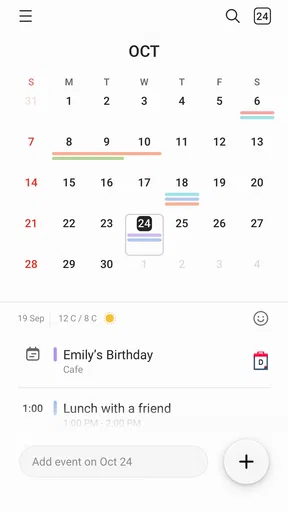
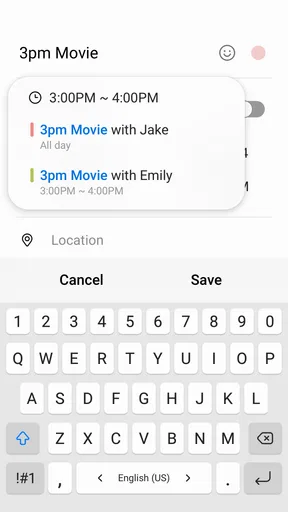
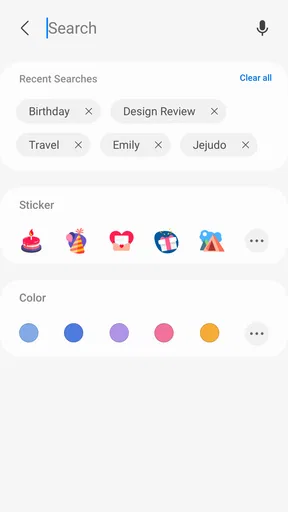
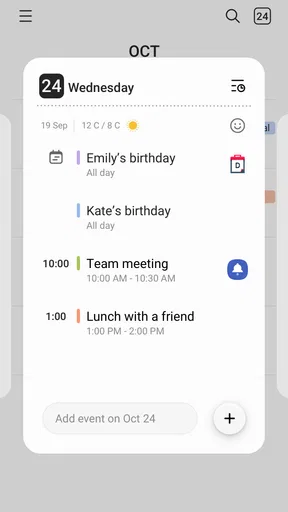
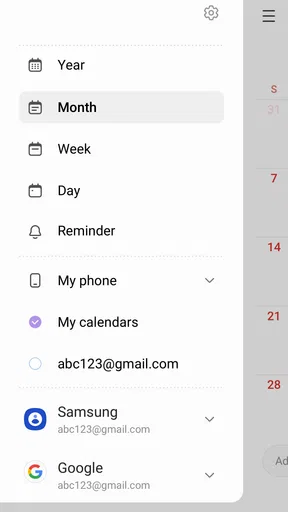
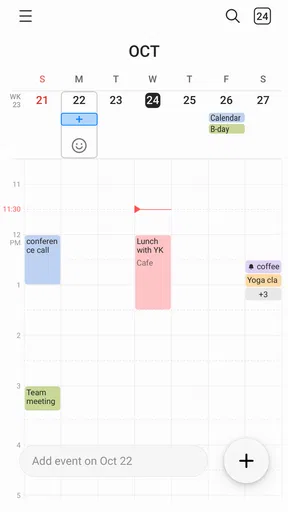
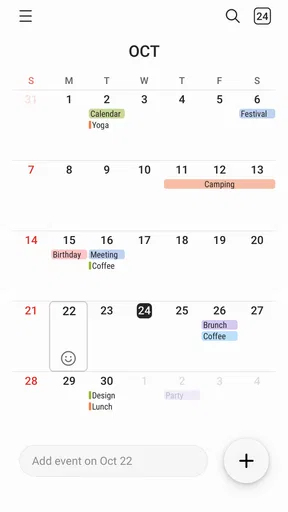
 Analysis by AppCompare
I find Samsung Calendar most useful when I treat it as a quiet daily organizer rather than a complicated planning system. It is a productivity app from Samsung Electronics Co., Ltd., designed to bring appointments, reminders, and personal plans into one place. The basic idea is simple: open the calendar, see what is ahead, add an event without fuss, and return later without having to reconstruct your week from memory.
That simplicity is its strongest quality for a first-time user. You do not need to learn a project-management method before getting value from it. If your immediate goal is to remember a dentist appointment, block out a work shift, plan a family visit, or keep track of a recurring commitment, the app gives you a familiar calendar-based way to do that. I would especially recommend it to someone who wants a dependable everyday planner on a Samsung device and does not want a separate, heavily structured productivity system.
What to expect when you open Samsung Calendar
The first screen is built around time: days, weeks, or months are easier to understand when they are placed visually in front of you. I like this approach because it answers the question most people actually have when opening a calendar: “What is happening soon, and where do I have space?” Instead of forcing you through a task list first, Samsung Calendar lets the date structure guide your planning.
The app is free and rated for Everyone, which makes it approachable for households with different levels of technical confidence. Its scale also shows that it is not a niche experiment: it has passed one billion installs, with an average rating of 4.1 from roughly 113,000 ratings. Those figures do not guarantee that it will suit every workflow, but they do reflect a tool that many people use as part of ordinary phone routines.
My first impression is that the app works best when you want a calendar you can check in seconds. It is less compelling if you expect a full task-management workspace with extensive project boards, team assignments, or deep note-taking. Samsung Calendar can support planning, but it should not be mistaken for a complete replacement for every productivity category.
One useful mindset is to decide what belongs in a calendar before entering anything. A calendar is excellent for things tied to a date or time: an appointment, a class, a trip, a deadline, or a regular activity. A loose idea such as “clean the garage someday” may be better kept in a notes or task tool unless you turn it into a scheduled action. This small distinction prevents the calendar from becoming a long, confusing list of vague intentions.
Who will get the most from it
I think Samsung Calendar is a strong fit for people who want a visual overview without spending an evening configuring a system. Students can use it to see classes, study blocks, and submission dates together. Families can use separate entries for school events, medical visits, and shared plans. Someone working changing shifts can enter each shift and quickly inspect whether a new commitment clashes with an existing one.
Worth Reading Before You Choose

Flipboard Shows What News Apps Must Do Beyond the Feed

Switching to Android Auto Means Rethinking Your Driving Routine

Google Calendar Makes a Crowded Week Easier to Manage

Ludo King Makes the Most of the Minutes Between Plans

Baby Panda World Brings Quick Play to Modern Phones, but Its Game Library Feels Busy

ESPN’s Live Game View Makes Following Close Games Easier
It is also a sensible choice for Samsung phone owners who prefer a built-in-feeling experience instead of installing another calendar immediately. The app comes from Samsung Electronics Co., Ltd., and that matters to users who want their phone’s own productivity tools to feel consistent. I would still compare it with the calendar service already connected to your other devices before committing to one as your main planner.
People who should look elsewhere are those who need advanced collaboration, detailed project dependencies, or a highly specialized scheduling workflow. A shared family calendar may be enough for basic coordination, but a large team with complex responsibilities will probably need a dedicated work platform. Likewise, if you live entirely inside another ecosystem and already have years of appointments there, switching may create more friction than benefit.
Setting it up without making the calendar messy
For a first launch, I recommend resisting the urge to enter every future plan immediately. Start with the commitments that affect the next few days. Add one appointment, one recurring responsibility, and one event that needs preparation. This gives you a useful test of the app’s rhythm without filling the screen with items you may later delete.
Before saving an event, pause over its title. “Meeting” is technically correct but not very helpful when you are scanning a crowded day. I get more value from titles that include the purpose, such as “Meeting with design team” or “Pick up prescription.” A clear title reduces the need to open each entry and makes the month view more informative.
Then choose the correct date and time carefully. A calendar entry with the wrong start time can be more damaging than no entry at all, especially for appointments. When an event lasts longer than a quick visit, I make sure its duration reflects reality rather than leaving everything as a short default block. That gives me a more honest picture of available time.
Recurring events deserve special attention. They are convenient for weekly lessons, regular appointments, or repeating routines, but they can quietly become clutter when circumstances change. I suggest creating a recurring entry only when the pattern is genuinely stable. If your schedule changes often, individual events may take longer at first but can be easier to trust later.
A practical setup habit is to add preparation time as a separate calendar entry when it matters. For example, the appointment itself may be at a clinic, but travel, parking, or collecting documents can determine whether you arrive calmly. Samsung Calendar is more useful when it represents the real shape of your day instead of only recording the headline event.
How to make the first meaningful entry
My recommended first success is a real event happening soon, not a test entry that you will immediately remove. Choose something you already know is coming, give it a specific name, set the correct time, and save it. Then return to the main calendar view and confirm that it appears where you expect. That simple loop teaches the essential behavior: create, inspect, and trust.
After that, add the information you would otherwise need to remember separately. Depending on the event, that might include a location, a short note, or a reminder that gives you enough warning to act. I avoid writing a full paragraph when a few precise words will do. The best calendar entry is not the longest one; it is the one that answers the question you will have when the event is approaching.
A realistic example is a medical appointment next week. I would create an entry named after the appointment rather than using a generic label, enter the actual time, include the clinic location, and add a note about anything I need to bring. I would also create a separate travel block if the journey is significant. When the day arrives, the calendar becomes a practical checklist rather than a vague reminder.
For a workday, I use the same principle differently. I might enter the fixed meeting first, then add a focused work block around it. This exposes whether I have promised myself more uninterrupted time than the day can realistically provide. The calendar is valuable here not because it completes the work, but because it makes overbooking visible before it becomes a problem.
If you are planning a trip, begin with the immovable parts: departure, accommodation, tickets, or booked activities. Add flexible ideas afterward. This order prevents optional plans from hiding the commitments that actually control the schedule. It also makes later editing less stressful because you know which entries are anchors and which are suggestions.
Small habits that make the app more dependable
I recommend checking the calendar at two predictable moments: when planning the day and when preparing for the next one. A quick morning glance shows what is fixed, while an evening check catches anything that needs preparation. This is more effective than opening the app randomly and hoping that important information happens to be visible.
Use consistent wording for repeated types of events. If every appointment with a particular service uses a similar title, scanning becomes faster. I also keep locations specific enough to be useful but short enough to read at a glance. These are small choices, yet they determine whether the calendar feels like a helpful reference or another source of mental work.
Another non-obvious advantage of a visual calendar is that empty space is information. I try not to fill every open hour with a task. Leaving breathing room helps me distinguish a genuinely available period from a day that only looks manageable because preparation and travel were ignored. Samsung Calendar is at its best when it supports realistic planning rather than encouraging maximum occupancy.
For recurring commitments, review the pattern occasionally. A class may end, a work shift may change, or a weekly errand may no longer be necessary. Deleting or adjusting outdated repetitions is part of maintaining trust. If old entries remain indefinitely, the calendar starts telling you a story about your past schedule instead of your current one.
Common points of confusion for new users
The most common mistake is treating every item as the same kind of event. A one-time appointment, an all-day occasion, and a repeating routine have different planning consequences. If you choose the wrong format, the calendar may still look populated, but the result will not represent your day accurately. I always ask myself whether the item has a specific time, occupies the whole day, or repeats on a dependable pattern.
All-day entries can be especially easy to misunderstand. They are useful for dates that matter without occupying a particular hour, such as a deadline or a travel day. They are not a substitute for blocking the actual time needed to complete something. If I mark a deadline as all-day but never reserve time to work toward it, the calendar records the consequence rather than helping me prepare.
Another source of confusion is assuming that a calendar entry automatically handles the work connected to it. Recording “renew document” does not gather the paperwork, and adding “buy groceries” does not create a shopping plan. I use the calendar for the moment or period when action should happen, then keep supporting details in the appropriate place. This separation keeps entries readable.
People also sometimes expect a calendar to solve synchronization problems by itself. If you already use another calendar service or switch between devices, take time to understand which account is receiving new events and where older events live. A calendar can look empty not because appointments vanished, but because you are viewing a different source or account. Before migrating fully, I would create a harmless test event and confirm that it appears where I need it.
Notifications are another area where expectations should be realistic. A reminder is only useful if its timing matches the action required. For a nearby appointment, a short warning may be enough. For a trip, exam, or document deadline, I prefer an earlier prompt so there is time to prepare. The right reminder depends on the event, and copying one timing choice across every entry can create either unnecessary noise or unpleasant surprises.
Visual clutter can also make the app feel less useful than it is. If a month view contains too many repeated routines, I switch to a shorter view when I need detail and use the broader view only for orientation. I do not expect one screen to answer every planning question. The month is good for patterns and major commitments; the day is better for deciding what can actually fit.
How it compares with familiar alternatives
Compared with a paper planner, Samsung Calendar is easier to revise. A cancelled appointment does not require crossing out a page, and a repeating event does not need to be redrawn manually. The trade-off is that a paper planner can feel more open for sketches, reflections, and free-form planning. If you enjoy writing long notes by hand, the digital calendar may feel intentionally limited.
Compared with a simple notes app, Samsung Calendar is much better at placing commitments in time. Notes are excellent for lists and reference material, but they do not naturally show whether two obligations overlap. I would use notes for information that supports an event and the calendar for the event itself. Combining the two roles in one place often produces entries that are too long to scan.
Compared with a task manager, the difference is even clearer. A task manager usually focuses on what needs doing, while Samsung Calendar focuses on when something happens. If you have a large collection of tasks with priorities, labels, or multi-step projects, a dedicated task tool may be better. If your main problem is forgetting appointments and losing track of the week, the calendar is likely the more direct solution.
Compared with a collaboration-first calendar, Samsung Calendar may feel calmer for personal planning, but less suitable for a team that needs extensive shared workflows. I would choose it for my own schedule or straightforward household coordination, then consider a more specialized service when permissions, group ownership, or work reporting become central.
Where the experience is strong and where it asks for patience
The strongest part of Samsung Calendar is the low distance between thought and entry. When I remember an appointment, I can put it into a date-based view instead of building a complicated structure first. That speed matters because the best planning system is often the one I will actually use during a busy moment.
Its visual approach also helps reveal conflicts that a list can hide. Two commitments may both sound reasonable when read separately, but their positions on the same day can show that travel or recovery time is missing. I use that perspective to negotiate plans earlier rather than discovering the problem on the morning itself.
The main limitation is that a calendar can encourage false confidence. Seeing a full day of colored entries may feel organized even when none of those entries includes the work required beforehand. Samsung Calendar records the schedule you give it; it cannot judge whether your plan is realistic. The more important the event, the more deliberately I add preparation, travel, and follow-up.
There is also a learning curve around choosing the right level of detail. Too little information forces me to remember extra context. Too much makes entries slow to create and difficult to read. I found the best balance by using a concise title, a precise time, a useful location, and only the notes that will matter later.
The app’s broad audience is both a benefit and a limitation. It is approachable because it does not demand a specialized productivity philosophy, but users seeking deep customization may find that restraint frustrating. I would not choose it solely because it is popular; I would choose it because its straightforward calendar model matches the way I plan.
Questions I would settle before making it my main calendar
If you are wondering whether it costs anything to try, Samsung Calendar is free. That makes testing it low-risk, especially if your current system is a paper diary or a cluttered notes app. I would still spend a few days using real appointments before moving every long-term plan into it.
If you are unsure whether it suits a child or an older relative, its Everyone content rating and familiar date-based layout make it approachable. The bigger question is not age but comfort with digital calendars and reminders. For someone who dislikes typing on a phone, a paper planner may remain more comfortable even if the app is capable.
If you are asking whether it replaces a task manager, my answer is usually no. It can schedule tasks and make deadlines visible, but it is not the same as managing a large backlog of work. I would pair it with another tool when the task itself needs detailed steps, priorities, or ongoing status.
If you are deciding whether to move from another calendar, begin with a small trial. Enter the next week’s fixed commitments, check how naturally you find them later, and see whether the calendar view matches your habits. Only after that would I migrate older events. This avoids turning a simple app decision into a stressful data-cleanup project.
If you are concerned about becoming dependent on reminders, use them as support rather than permission to stop checking your schedule. I still review the day visually because a notification tells me that an event exists, while the calendar shows how that event fits beside everything else.
The next step after your first week
After several days, I would review which entries genuinely helped. Did a travel block prevent rushing? Did a recurring event save time? Did a reminder arrive too early or too late? This short review turns Samsung Calendar from a place where appointments are stored into a planning habit shaped around your actual life.
Then refine only what needs refining. Rename vague entries, remove obsolete repetitions, and add preparation time to important commitments. I would not attempt to optimize every color, label, or future date at once. The goal is a calendar that remains trustworthy when I am tired, distracted, or moving quickly through the day.
Samsung Calendar was released on July 14, 2023, and remains positioned as a straightforward productivity app rather than an elaborate planning suite. Its large install base and 4.1 average rating suggest broad usefulness, while the rating also hints that a simple calendar will not satisfy every preference. My own recommendation is practical: try it if you want a clean, date-centered way to organize personal commitments, especially on a Samsung phone.
My bottom line is that Samsung Calendar succeeds when you use it to make time visible and decisions easier. Start with one real appointment, enter enough context to act on it, check the next day before it begins, and keep task management separate when your projects become complex. For ordinary schedules, that is a reassuring path from installation to a meaningful result. For demanding team planning or deep task organization, I would choose a more specialized alternative instead.
Pros
- Clean monthly
- weekly
- and daily views make planning straightforward.
- Syncs well with Samsung devices and connected Samsung accounts.
- Events can include locations
- reminders
- notes
- and repeat schedules.
- Useful widgets provide quick access to upcoming appointments.
- Color coding helps separate work
- personal
- and other event types.
Cons
- Some features work best only within the Samsung device ecosystem.
- The interface may feel crowded when many calendars are enabled.
- Advanced calendar collaboration tools are relatively limited.
- Sync issues may occur when switching between Samsung and third-party accounts.
- Requires several permissions for full reminders and event functionality.
FAQs for Samsung Calendar
What is Samsung Calendar, and what can I use it for?
Samsung Calendar is the built-in calendar application available on many Samsung Galaxy smartphones and tablets. After testing its main features, it works well for creating personal, work, school, and recurring events, setting reminders, adding locations, and organizing appointments by day, week, or month. It also supports multiple calendars, so users can separate accounts or activities more easily.
Does Samsung Calendar synchronize with Google Calendar or other accounts?
Yes, Samsung Calendar can synchronize with supported accounts, including Samsung and Google accounts, depending on your device, Android version, and account settings. This makes it possible to view events created on other devices or services in one place. Before relying on synchronization, check that the correct account is enabled and that calendar sync is active in your phone’s settings.
Can I create recurring events and receive reminders in Samsung Calendar?
Samsung Calendar includes useful options for repeating events, such as daily, weekly, monthly, or yearly schedules. You can also choose notification times before an appointment, which is helpful for meetings, birthdays, classes, medication schedules, or bills. Reminder behavior may depend on notification permissions, battery-saving settings, and whether the application is allowed to run in the background.
Is Samsung Calendar free, and does it work on every Android phone?
Samsung Calendar is generally included free of charge on compatible Samsung Galaxy devices, so there is usually no separate purchase or subscription required. However, it is not designed as a universal calendar app for every Android manufacturer. Features and availability can vary according to the Galaxy model, One UI version, region, and installed system software.
What should I check before downloading or using Samsung Calendar?
Before using Samsung Calendar, confirm that your Samsung device supports the application and that you have enough available storage for system updates. Review calendar and notification permissions, especially if you need reliable reminders or synchronization. Users who already depend on Google Calendar should also verify that their events appear correctly and that duplicate calendars are not being displayed.


